
Introduction
Add a QR code to your printed wedding invitation that opens your wedding website and RSVP. Sizes, placement and a free printable QR card.
Printed invitations are back, but guests still want everything on their phone: the venue, the timings and a quick way to RSVP. A QR code bridges the two. Guests point their phone camera at the card, and your wedding website opens.
What a wedding QR code should open
Point the code at your wedding website, not a PDF or a photo. A website can show your story, every event with its own venue and Google Maps directions, and an online RSVP. And if a time or venue changes after printing, the code still works: it always opens the latest version of your website.
How to add a QR code with DreamWedds
- Publish your DreamWedds wedding website.
- Open QR Code in the website builder. You can also get there from My Themes or Share & Social.
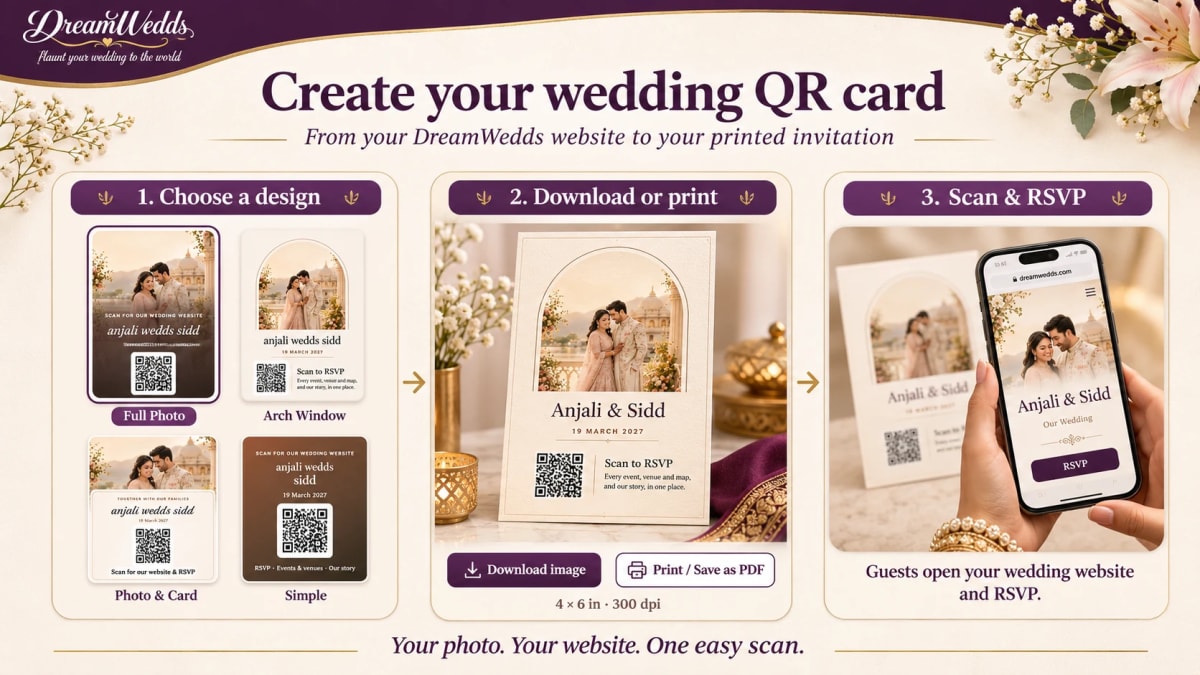
- Choose a design: Full Photo, Arch Window, Photo & Card or Simple. The photo designs use your social share image, and every design uses your template's colours.
- Select Download image, or Print / Save as PDF for a PDF.
- Print it as an insert card, or send the image to your printer or designer to place on the invitation.
The card is 4 × 6 inches at 300 dpi, with your names, your date, the QR code and your website link written out underneath. It's free with every published website. Make your QR card →
Tips so it always scans
- Size: print the code at least 2.5 cm (1 inch) wide.
- Background: keep a plain, light background around the code. Don't print it over a photo, pattern or foil.
- Quiet space: leave a margin of white around the code. The DreamWedds card's white tile does this for you.
- Contrast: dark code on a light background. Avoid gold-on-cream or pastel-on-white codes.
- Test before you print: scan a proof with two different phones, one iPhone and one Android.
- Write the link too: some guests prefer to type it.
Where to put it
- On an RSVP or details insert card. This is the easiest option, and it keeps the invitation itself clean.
- On the back of the invitation, with a line such as "Scan for our wedding website and RSVP".
- On save-the-dates, so guests can bookmark your website early.
- At the venue. A framed QR card at the welcome table helps guests find the schedule and the gallery.
What to write next to the code
- "Scan for our wedding website, events and RSVP"
- "RSVP by 1 March: scan the code or visit our website"
- "All the details, one scan away"
Frequently asked questions
Will the QR code stop working?
No. The code holds your website address, so it keeps working while your website is online, and it always shows your latest details.
Can I use my own photo on the card?
Yes. The Full Photo, Arch Window and Photo & Card designs use your website's social share image: your own upload, your AI-designed image, or your chosen banner photo. Change it in Share & Social and the cards update.
Do guests need an app?
No. Modern iPhone and Android cameras read QR codes directly, and your website opens in the browser.
Is the QR card free?
Yes. Every published DreamWedds wedding website can download its QR card as an image or save it as a PDF at no extra cost.
Create your wedding website, publish it, and download your free QR card from the website builder. Start free →
How to Put a QR Code on Your Wedding Invitation (and Make Sure It Scans)
14 NOV 2026
How to Create and Send an RSVP Link for Your Wedding (Step-by-Step)
8 NOV 2026
Tuscany vs Santorini vs Amalfi Coast for a wedding
18 JUN 2026

How Much Does a Destination Wedding in Europe Cost?
18 JUN 2026
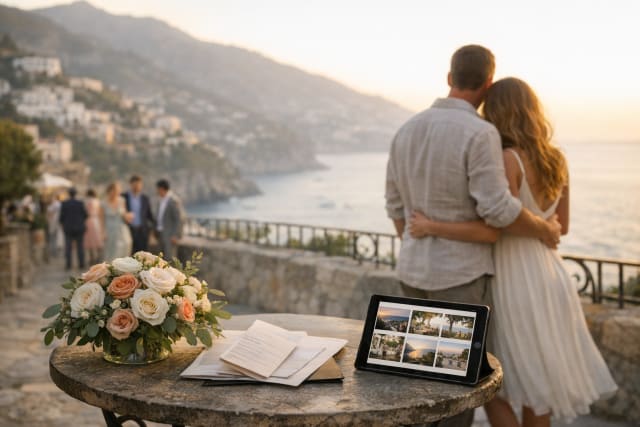
Top 20 Wedding Destinations in Europe for a Fairytale Wedding
18 JUN 2026

Wedding Checklist for US Couples: What to Do and When
18 JUN 2026

Best Wedding Venues in the USA for Every Budget
18 JUN 2026
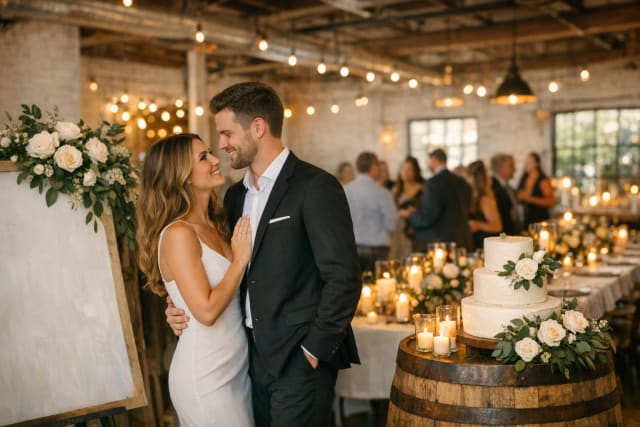
20 Most Popular Wedding Themes in America for 2026
18 JUN 2026

Average Wedding Cost in the USA: 2026 Budget Breakdown
18 JUN 2026

The Complete Wedding Planning Timeline for Busy Couples
18 JUN 2026
How to Put a QR Code on Your Wedding Invitation (and Make Sure It Scans)
14 NOV 2026
How to Create and Send an RSVP Link for Your Wedding (Step-by-Step)
8 NOV 2026
Tuscany vs Santorini vs Amalfi Coast for a wedding
18 JUN 2026
How Much Does a Destination Wedding in Europe Cost?
18 JUN 2026
Top 20 Wedding Destinations in Europe for a Fairytale Wedding
18 JUN 2026
Wedding Checklist for US Couples: What to Do and When
18 JUN 2026
Best Wedding Venues in the USA for Every Budget
18 JUN 2026
20 Most Popular Wedding Themes in America for 2026
18 JUN 2026
Average Wedding Cost in the USA: 2026 Budget Breakdown
18 JUN 2026
The Complete Wedding Planning Timeline for Busy Couples
18 JUN 2026
