
Introduction
This guide walks you through doing exactly that on DreamWedds, from an empty account to your first replies, in about 20 minutes.
The best RSVP system is the one your aunt can use from WhatsApp without calling you to ask how.
Paper RSVP cards come back late, half-filled or not at all. A group chat that says "let us know if you're coming!" gets forty thumbs-up emojis and no headcount. If you're planning a wedding with more than one event, say a mehndi on Friday, the ceremony on Saturday and a reception that evening, guessing who is coming to what gets expensive fast.
An online RSVP link fixes this. Each guest taps a link, says yes or no, picks which celebrations they'll attend, tells you how many people are coming and what they eat. You see the totals update as replies arrive.
This guide walks you through doing exactly that on DreamWedds, from an empty account to your first replies, in about 20 minutes.
"The best RSVP system is the one your aunt can use from WhatsApp without calling you to ask how."
What you'll need before you start
- A DreamWedds wedding website. Selected templates are free forever, no card required.
- Your event list: names, dates, times and venues for each celebration you want guests to RSVP to.
- Your guest list, ideally with a phone number for everyone and an email address where you have one. A spreadsheet works well.
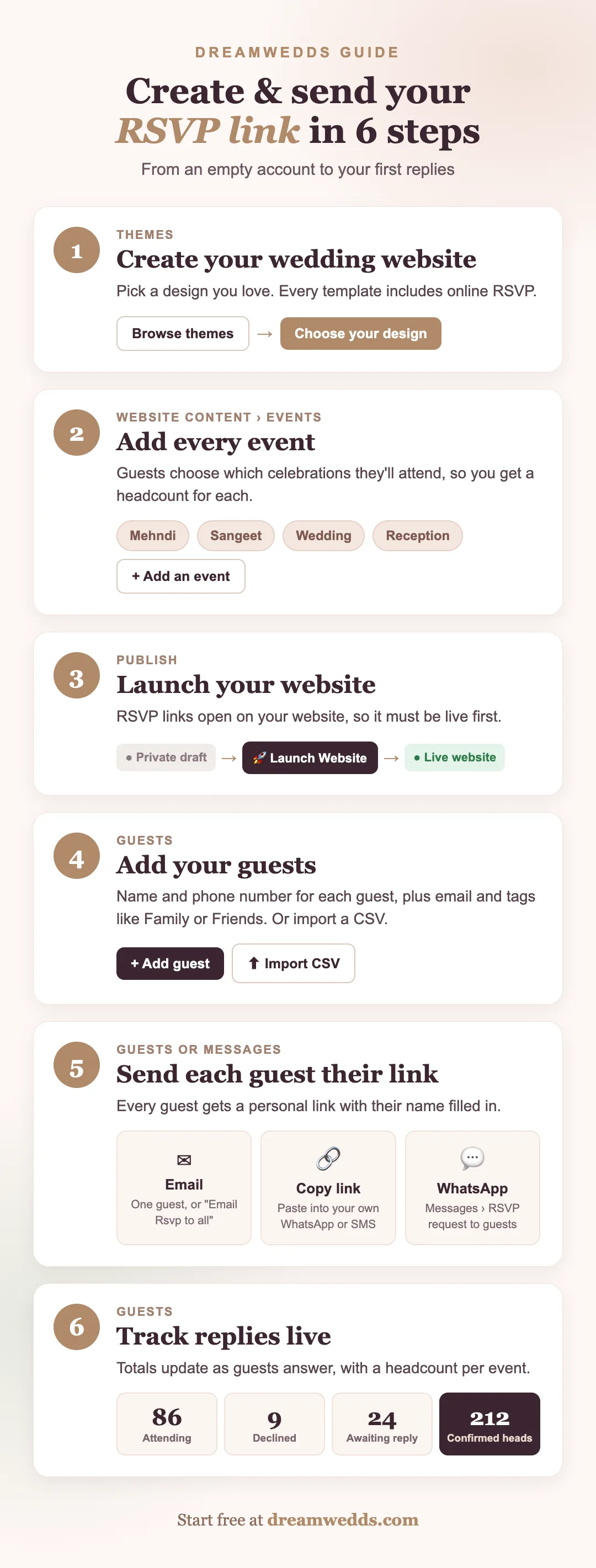
Here's the whole process at a glance:
Step 1: Create your wedding website
Go to Themes and pick a design. Every template has the RSVP system built in, so choose the one you love the look of. Follow the prompts to create your website, then open it in the website builder.
The builder menu on the left is grouped into Build, Launch, Connect and Grow. Everything in this guide happens in three places: Website Content, Publish and Guests (plus Messages if you want WhatsApp).
Step 2: Add your events
Open Website Content and go to the Events section. Click Add an event for each celebration: the event name, date, start time and venue.
Don't skip this. The events you add here are exactly what guests see under "Which celebrations will you join?" on their RSVP page. If you only add the main wedding, you'll only get a headcount for the main wedding.
- Hosting a multi-day celebration? Add every function separately (haldi, mehndi, sangeet, nikah, walima, reception) so you get a separate headcount for each. Caterers will ask for these numbers. See our guide to multi-day wedding websites.
- Mark your main ceremony as the primary event. Wedding-wide messages use its date and venue.
Step 3: Publish your website
RSVP links open a page on your wedding website, so the website has to be live before any link will work. Open Publish, check the preview and click Launch Website. The status at the top changes from Private draft to Live website.
If you try to send RSVP messages before publishing, DreamWedds stops you and asks you to publish first, so you can't accidentally send guests a link that doesn't open.
Not ready for the world to see everything? Publish with the essentials (names, date, events) and keep adding your story and photos afterwards.
Step 4: Add your guests
Open Guests. You have two options.
Add guests one by one
Click + Add guest and fill in:
- First name and phone number (both required), plus last name.
- Email, if you want to send their invitation by email.
- Tags, such as Family, Bride's friends or Office. Tags let you message one group at a time later.
- Number of guests and meal preference, if you already know them.
If you plan to use WhatsApp, tick the box confirming the guest agreed to receive wedding messages on WhatsApp. Only guests with this permission can receive WhatsApp invitations and reminders.
Import your whole list at once
Click Import CSV, then Download sample CSV to get a file with the right columns: FirstName, LastName, PhoneNumber, CountryCode, Email, Tags, NumberOfGuests, MealPreference and a few address fields. Paste your list in, save it as CSV and upload it.
Tip: Put the country code in its own column (91 for India, 44 for the UK, 1 for the US) rather than adding it to the phone number. It keeps WhatsApp delivery reliable for guests abroad.
Step 5: Send your RSVP links
Every guest gets their own personal RSVP link. That's what lets DreamWedds know who replied without making guests create an account or log in. Their name is already filled in when they open it. You can send links three ways, and mix them freely.
Option A: Email (free)
In Guests, click the ✉ icon next to a guest to email their invitation, or use Email Rsvp to all to email everyone with an email address. Select some guests first and the button changes to Email invites (n) to send only to them.
The guest receives an email saying "Hi Riya, you're invited!" with your names, the wedding date and city, and an RSVP Now button.
Option B: Copy the link and send it yourself (free)
Click the 🔗 icon next to a guest to copy their personal link. Paste it into a WhatsApp chat, a text message or Instagram DM with your own words. This is the most personal option, and great for grandparents and close family who'd rather hear from you directly.
Remember that each link belongs to one guest. Copy a fresh link for each person rather than posting one link in a family group.
Option C: Send through WhatsApp from DreamWedds
Open Messages, choose RSVP request to guests and pick the event you're inviting people to. Then choose who receives it: All guests, By guest tag or Choose guests. Check the message preview on the right; names and links are personalised for each guest.
Click Send now, or choose Schedule for later to send at a set date and time, for example on a Sunday morning when people actually read their messages. WhatsApp messages use message credits, which you can add under Add-ons. The same message can also go by email, which doesn't use credits.
What your guests see
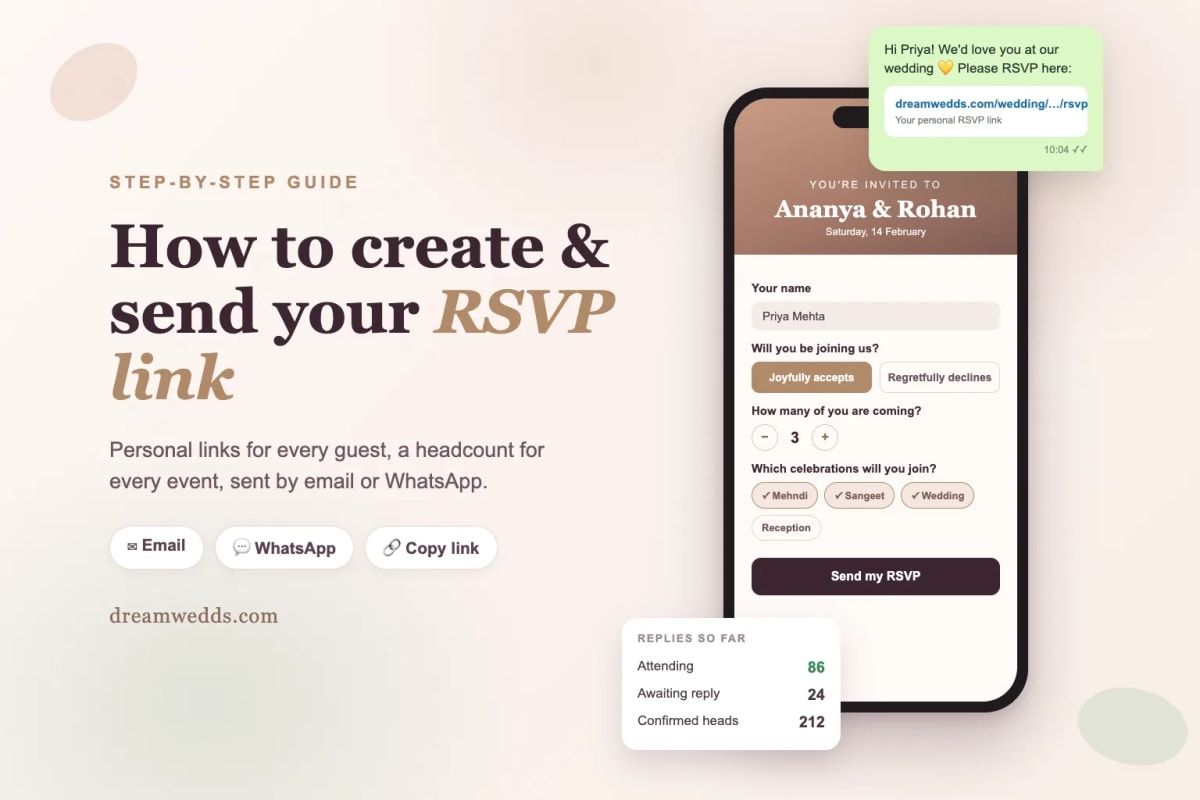
When a guest opens their link, they see "You're invited to" your wedding with their name already filled in, and answer a few quick questions:
- Will you be joining us? Joyfully accepts or Regretfully declines.
- How many of you are coming? A simple plus/minus counter, up to 10.
- Which celebrations will you join? One tick per event you added in step 2.
- Meal preference, for example vegetarian, Jain or no nuts.
- Travelling from, which is handy for planning hotel blocks and airport pickups.
- Their email, phone and an optional note for the couple.
It works on any phone with no app or login, which is why reply rates are so much higher than with paper cards.
Step 6: Track replies and follow up
Back in Guests, the summary at the top updates as replies come in:
- Attending, Declined and Awaiting reply counts.
- Confirmed heads: the real number of people coming, plus-ones included.
- A headcount for each event, ready to send to your caterer or venue.
Each guest in the list shows Not invited, Invited or Responded. To chase late replies, resend to anyone still marked Invited, or schedule a reminder from Messages.
When a guest needs to change their answer
Once a guest replies, their link is locked so the answer can't be changed by accident (or by someone they forwarded it to). If they need to change something, resend their invitation or copy their link again from the Guests list. DreamWedds creates a fresh link, the old one stops working, and their previous answers are already filled in, so they only change what's different.
Common mistakes to avoid
- Sending links before publishing. Publish first. Guests who hit a dead link rarely try again.
- Adding only the main event. You lose per-event headcounts, which are what caterers and venues need.
- Sharing one link in a group chat. Links are personal. Whoever opens it first answers for that guest.
- No deadline. Mention a reply-by date in your message, roughly four to six weeks before the first event, and schedule a reminder a week before it.
- Forgetting the country code. Guests abroad won't receive WhatsApp messages without the right code.
Frequently asked questions
Do my guests need to download an app or create an account?
No. The RSVP link opens in any phone or computer browser, and the guest's name is already filled in.
Is the online RSVP free?
Creating RSVP links, emailing them and copying them to send yourself doesn't cost anything extra. Sending WhatsApp messages directly from DreamWedds uses message credits.
Can guests RSVP for some events and not others?
Yes. Guests tick exactly which celebrations they'll attend, and you get a separate headcount for each event.
Can I send RSVP links for an Indian or Muslim wedding with many functions?
Yes. DreamWedds was built for multi-event weddings. Add each function as its own event. See our pages for Indian wedding websites and Muslim wedding websites.
What if a guest forwards their link?
The page tells guests the link is personal. If a forwarded link was used by mistake, resend the invitation to the right guest. The new link replaces the old one.
Ready to send your first RSVP link?
Choose a design from DreamWedds themes, add your events and guests, and your first replies can arrive today. If you're comparing platforms, here's how DreamWedds stacks up against Joy, Zola and The Knot.
How to Create and Send an RSVP Link for Your Wedding (Step-by-Step)
8 NOV 2026
Tuscany vs Santorini vs Amalfi Coast for a wedding
18 JUN 2026

How Much Does a Destination Wedding in Europe Cost?
18 JUN 2026
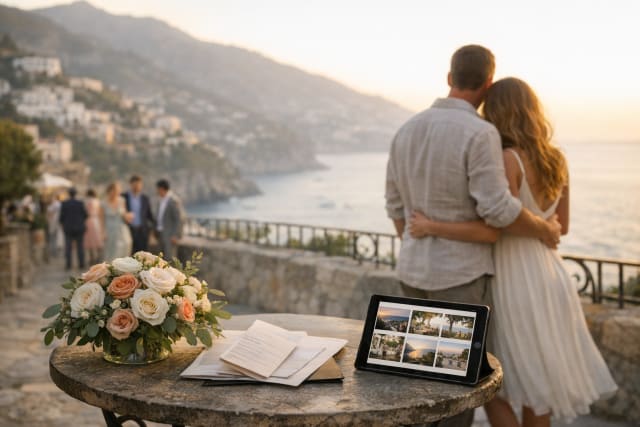
Top 20 Wedding Destinations in Europe for a Fairytale Wedding
18 JUN 2026

Wedding Checklist for US Couples: What to Do and When
18 JUN 2026
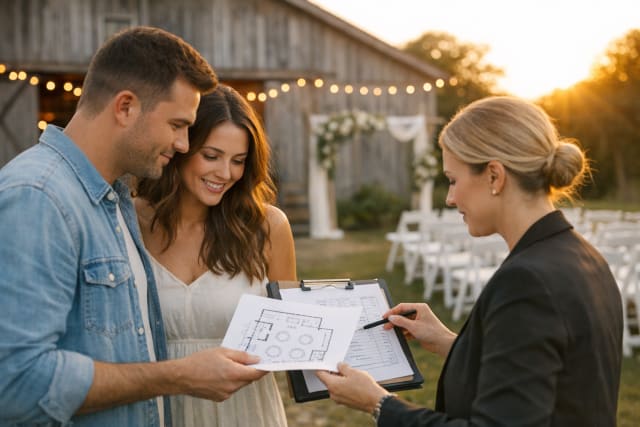
Best Wedding Venues in the USA for Every Budget
18 JUN 2026
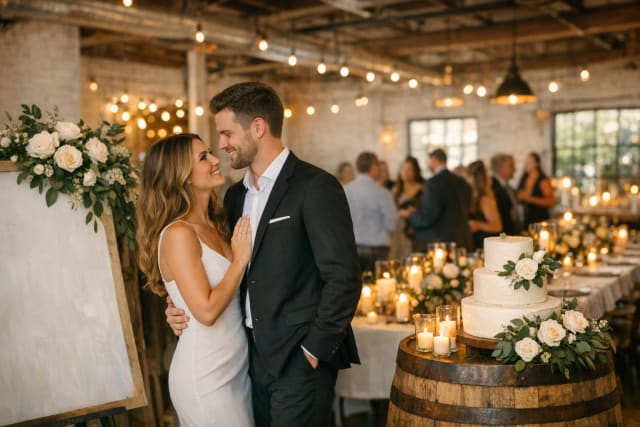
20 Most Popular Wedding Themes in America for 2026
18 JUN 2026

Average Wedding Cost in the USA: 2026 Budget Breakdown
18 JUN 2026

The Complete Wedding Planning Timeline for Busy Couples
18 JUN 2026
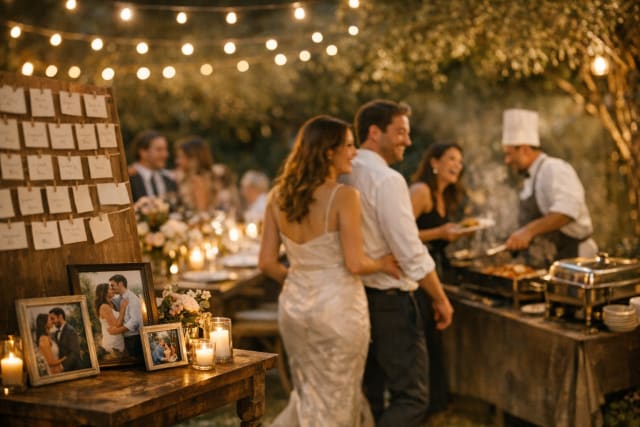
35 Unique Wedding Ideas That Wow Your Guests
18 JUN 2026
How to Create and Send an RSVP Link for Your Wedding (Step-by-Step)
8 NOV 2026
Tuscany vs Santorini vs Amalfi Coast for a wedding
18 JUN 2026
How Much Does a Destination Wedding in Europe Cost?
18 JUN 2026
Top 20 Wedding Destinations in Europe for a Fairytale Wedding
18 JUN 2026
Wedding Checklist for US Couples: What to Do and When
18 JUN 2026
Best Wedding Venues in the USA for Every Budget
18 JUN 2026
20 Most Popular Wedding Themes in America for 2026
18 JUN 2026
Average Wedding Cost in the USA: 2026 Budget Breakdown
18 JUN 2026
The Complete Wedding Planning Timeline for Busy Couples
18 JUN 2026
35 Unique Wedding Ideas That Wow Your Guests
18 JUN 2026
